1. Introduction
Taking screenshots in Ubuntu is extremely useful for creating user manuals, reporting bugs, and performing design-related tasks.
This article provides a complete guide to screenshot methods available in Ubuntu—from basic capture techniques to advanced terminal usage,
as well as recommended third-party tools to enhance your workflow.
2. Basic Screenshot Methods
2.1 Capture the Entire Screen
The simplest way to take a screenshot on Ubuntu is by pressing the Print Screen key.
This action captures the entire screen and saves the image by default in the Pictures folder inside the Screenshots directory.
This makes capturing full-screen images quick and effortless.
2.2 Capture a Window
If you only want to capture a specific window, use the Alt + Print Screen shortcut.
This grabs the active window and saves it in the Pictures folder, just like full-screen captures.
2.3 Capture a Selected Area
To capture only a portion of the screen, use the Shift + Print Screen shortcut.
You can select the area with your mouse, making it ideal for presentations or highlighting specific sections.
3. Advanced Screenshot Techniques Using the Terminal
Ubuntu also allows advanced screenshot options via the terminal.
This approach is recommended for users who want detailed configuration control or wish to use scripts.
3.1 Installing gnome-screenshot
Ubuntu includes a command-line tool called gnome-screenshot that allows taking screenshots directly from the terminal.
If it’s not installed, use the following command:
sudo apt install gnome-screenshot3.2 Capture the Entire Screen
Run the command below to capture the entire screen:
gnome-screenshot3.3 Capture Only the Active Window
To capture the currently active window, use:
gnome-screenshot -w3.4 Capture a Selected Area
To capture only a specific area of the screen, execute the command below:
gnome-screenshot -a3.5 Save the Capture to a Specific Folder
Although screenshots are saved to the Pictures folder by default, you can specify a custom location:
gnome-screenshot -w -f ~/Documents/window_screenshot.png3.6 Use Delayed Capture
If you need time to prepare the screen before capturing, add a delay.
For example, to capture a window after 5 seconds:
gnome-screenshot -w -d 5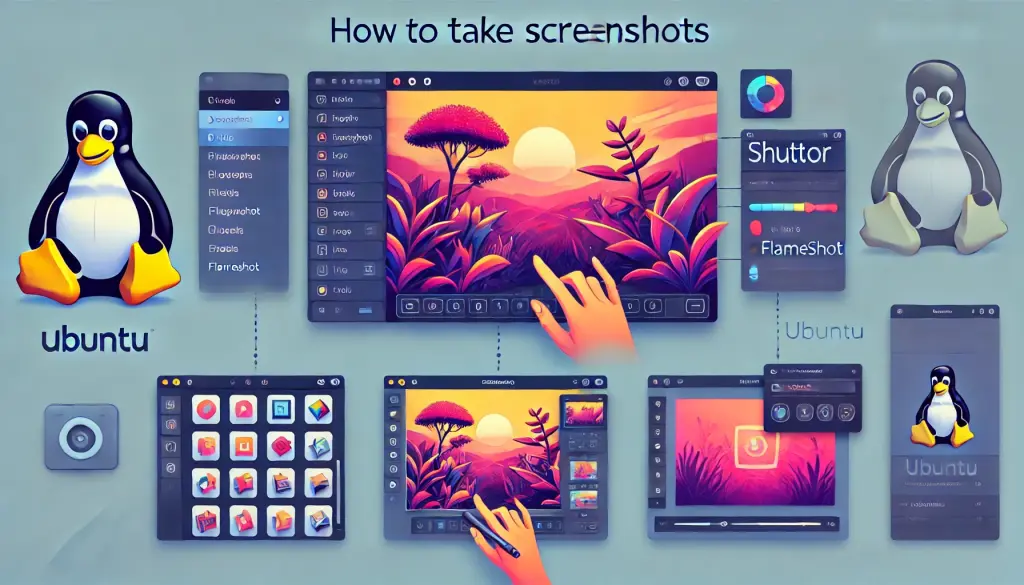
4. Using Third-Party Tools
Besides the default Ubuntu tools, several feature-rich third-party applications are available.
Here, we introduce two popular options: Shutter and Flameshot.
4.1 Installing and Using Shutter
Shutter is a powerful tool that allows you to edit screenshots immediately after capturing them.
You can add text, arrows, and annotations directly to your image. To install:
sudo apt install shutterShutter is ideal for creating tutorials and presentation materials thanks to its instant editing features.
4.2 Installing and Using Flameshot
Flameshot is a simple yet powerful screenshot tool.
It features customizable shortcuts and advanced editing tools. Install it using the command below:
sudo apt install flameshotFlameshot offers rich editing options, making it easy to add highlights and annotations immediately after capturing an image.
5. Configuring Save Locations and Shortcut Customization
5.1 Check and Modify the Default Save Location
By default, Ubuntu saves screenshots in the Pictures folder. However, this can be changed.
With a custom script, you can configure screenshots to be saved anywhere you like.
5.2 Customize Shortcut Keys
You can also modify keyboard shortcuts to suit your preferences.
Open Settings > Keyboard > Shortcuts to disable existing ones or create new shortcuts.
This customization helps optimize your workflow.
6. Frequently Asked Questions and Troubleshooting
6.1 When Screenshots Do Not Save
Sometimes screenshots may fail to save.
In such cases, ensure that the target folder exists and that permission settings are correct.
Low disk space may also cause saving errors.
6.2 Compatibility with Other Applications
Some screenshot tools may not work properly with certain applications.
Using Flameshot or Shutter can help avoid these issues thanks to better compatibility.