1. What Is a MAC Address?
Overview of MAC Addresses
A MAC address (Media Access Control address) is a unique identifier assigned to a Network Interface Card (NIC). This address is essential for device communication on a network, and each network device has its own MAC address. A MAC address is 48 bits long and is typically represented in the format “MM:MM:MM:SS:SS:SS”.
The Role of MAC Addresses
MAC addresses primarily serve the following purposes:
- Network Communication: They enable communication between devices at the data link layer, ensuring accurate data transmission and reception.
- Security Management: Network administrators can use MAC addresses to allow only specific devices to connect to a network.
- Troubleshooting: When network issues occur, MAC addresses help identify specific devices.
When You Need a MAC Address
MAC addresses are required in the following scenarios:
- When registering a new device on a network.
- When diagnosing network connection issues.
- When assigning a specific IP address to a device.
2. How to Check a MAC Address in Ubuntu: Command-Line Edition
2.1. Checking MAC Addresses Using the ip link Command
The most common method in Ubuntu is using the ip link command. Follow these steps to check the MAC address of your network device:
- Open the terminal.
- Enter and run the following command:
ip link showThe output displays information about network devices. The hexadecimal value shown after “link/ether” is the MAC address.
Example:
2: wlp1s0: <BROADCAST,MULTICAST,UP,LOWER_UP> mtu 1500 qdisc noqueue state UP mode DEFAULT group default qlen 1000
    link/ether f8:6a:3f:4b:b0:ab brd ff:ff:ff:ff:ff:ff
2.2. Checking MAC Addresses Using the ifconfig Command
Another traditional method is using the ifconfig command. You can check the MAC address as follows:
- Open the terminal.
- Enter the following command:
ifconfigThe MAC address appears after the “ether” label in the output.
Example:
wlp1s0: flags=4163<UP,BROADCAST,RUNNING,MULTICAST>  mtu 1500
    ether f8:6a:3f:4b:b0:ab  txqueuelen 1000  (Ethernet)
2.3. Extracting MAC Addresses Using grep
You can use the grep command to extract only the MAC address for a specific network interface:
ip addr | grep "link/ether"This command extracts only the MAC address, skipping unnecessary information.
3. How to Check MAC Addresses Using the GUI
Using Network Settings in Ubuntu
This approach is convenient for users who prefer not to use the terminal. The steps below apply to the GNOME desktop environment:
- Open the Settings Menu
Open Ubuntu’s “Settings”. - Access Network Settings
Select “Network” from the left-side menu. - View Connection Details
Click the gear icon next to your Wi-Fi or wired connection to view its details. The MAC address will appear as the “Hardware Address” (or MAC address).
Screenshot Examples
You should see screenshots similar to the ones below:
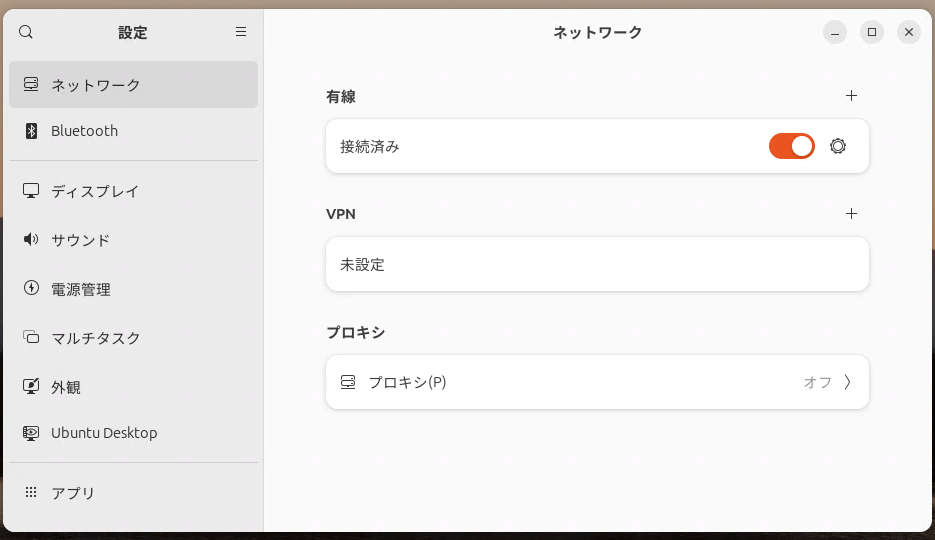
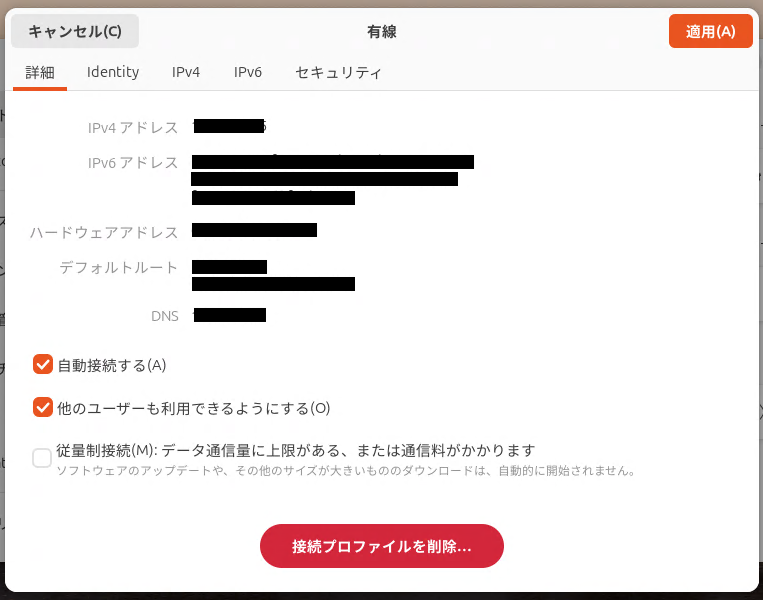
- If using Wi-Fi: Select the “Wi-Fi” menu on the left and click the gear icon.
- If using a wired connection: Follow similar steps under the “Wired” menu.
4. Important Notes When Checking MAC Addresses
4.1. Multiple Network Devices
Computers may have several network interfaces such as Wi-Fi, Ethernet, and Bluetooth. Each interface has its own MAC address, so be sure to check the correct one depending on your purpose.
4.2. Checking MAC Addresses for Bluetooth Devices
To view the MAC address of a Bluetooth device, use the following command:
hciconfigThe value shown as “BD Address” is the Bluetooth MAC address.
Example:
hci0:    Type: Primary  Bus: USB
    BD Address: DC:41:A9:FB:7A:C4  ACL MTU: 1021:4  SCO MTU: 96:6
5. Frequently Asked Questions (FAQ)
Can a MAC Address Be Changed?
Generally, MAC addresses are hardcoded and cannot be changed. However, on Linux systems, temporary MAC address changes are possible using the ip link command.
sudo ip link set dev eth0 address XX:XX:XX:XX:XX:XXHow Do I Check MAC Addresses in Virtual Machines?
Virtual machines (VMs) also have MAC addresses assigned per network interface. You can view them from the VM software’s network settings or use the ip link or ifconfig commands inside the guest environment.
6. Summary: Mastering MAC Address Checks in Ubuntu
This guide covered how to check MAC addresses in Ubuntu using both command-line and GUI methods. Both approaches are straightforward and useful for network management and troubleshooting. When network issues arise or you need to identify a device, use these methods to quickly find the required information.