1. How to Easily Check CPU Usage in Ubuntu
The Importance of Monitoring CPU Usage in Ubuntu
Monitoring CPU usage is extremely important for system administrators. When system resources become insufficient, overall performance can degrade. Therefore, it is recommended to regularly check resource usage. This article explains the commands you can use to monitor CPU usage in an Ubuntu environment.
2. Basic Methods to Check CPU Usage in Ubuntu
How to Use the top Command
The top command is a fundamental tool for checking CPU usage. Using this command, you can view real-time CPU usage by process, memory consumption, and overall system status. When you run top, a screen like the following will appear:
top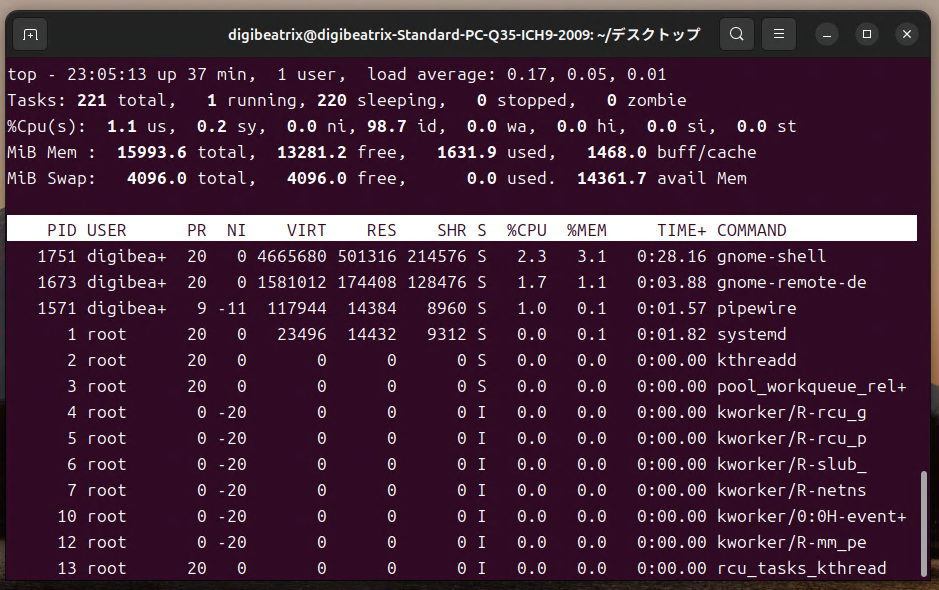
By pressing the 1 key, you can view usage information for each CPU core. Additionally, pressing Shift + M allows you to sort processes by memory usage.
Customizing the top Command
The top command allows you to customize displayed columns so that only the information you need is shown. For example, pressing the f key lets you enable or disable individual columns. This helps you organize details related to CPU and memory usage more efficiently.
3. Advanced Monitoring Tools
Using the htop Command
htop provides a more visual and user-friendly interface compared to top. Resource usage per process is color-coded, making it easier to understand. You can install htop using the following command:
sudo apt-get install htopAfter running the command, a screen similar to the following will appear:
htop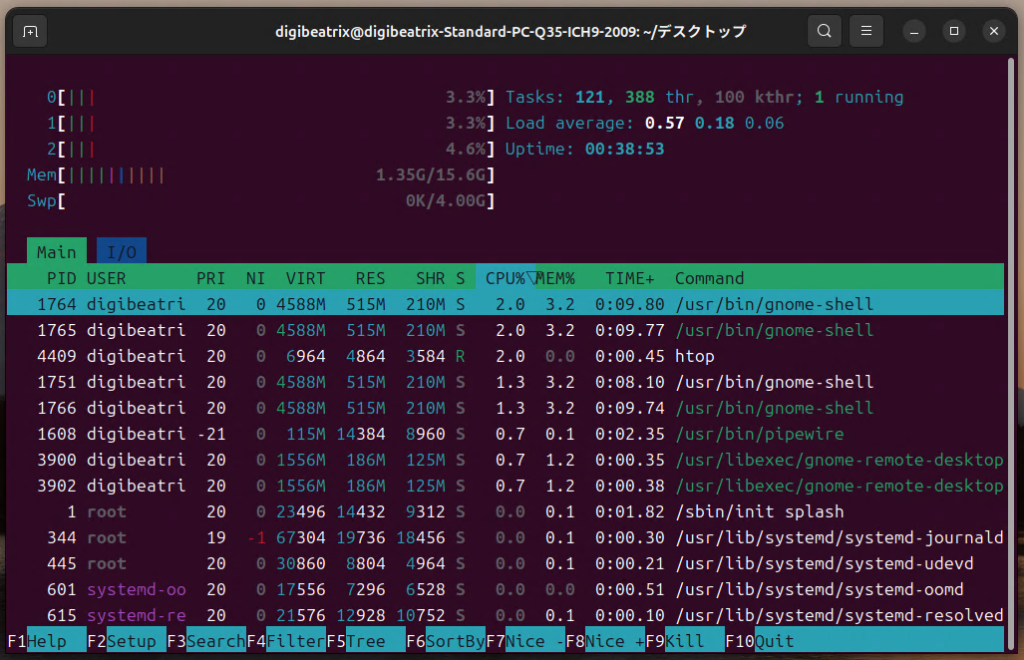
With htop, you can use your mouse to interact with the interface and perform filtering or sorting using the function keys. Additionally, pressing the F3 key allows you to search for specific processes quickly.
System Monitoring with the vmstat Command
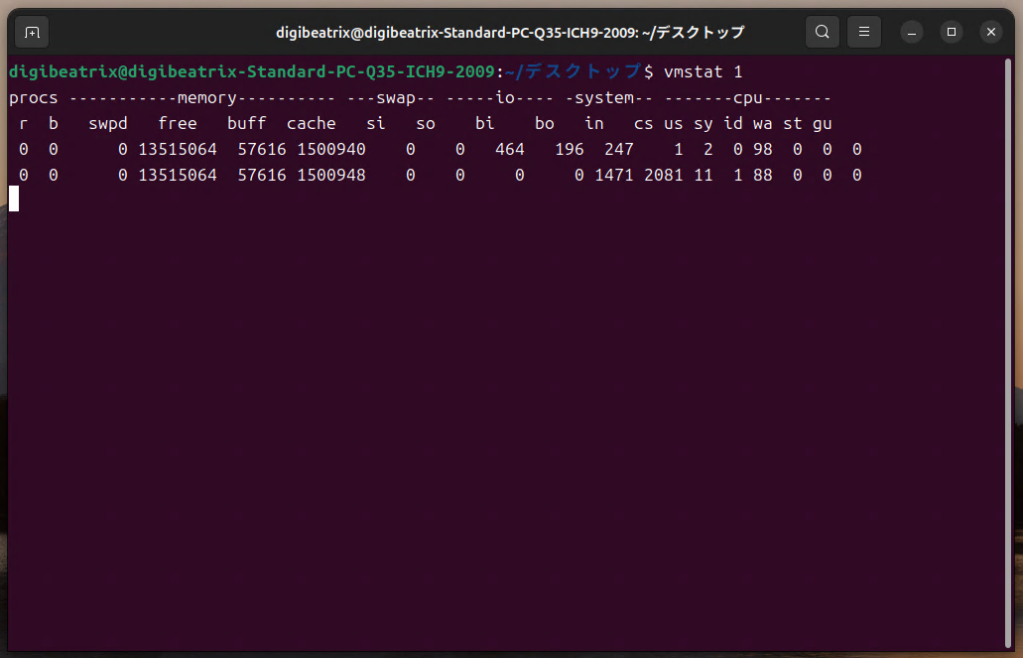
The vmstat command is a tool that provides concise insight into system-wide performance, including memory, CPU, and I/O operations. You can check CPU usage and memory conditions every second with the following command:
vmstat 1This displays average resource usage since the system started. If you want to track usage patterns over time, you can output the results to a file for continuous monitoring.
4. Case-Based CPU Usage Monitoring
Monitoring Long-Term Resource Usage
If your system experiences heavy load for long periods, it is recommended to use vmstat to log CPU and memory usage. For example, the following command records CPU usage every second:
vmstat 1 > cpu_usage.logThis helps you identify patterns where resource usage spikes at specific times.
Detecting Sudden Load Spikes
Using tools such as top or htop enables you to observe sudden CPU load spikes in real time and take immediate action. This makes it easier to quickly identify problematic processes.
5. Summary and Best Practices
Regular resource monitoring is essential for maintaining stable system operations. Tools such as top and htop allow you to check CPU usage in real time, while commands like vmstat and dstat help you gather detailed information and analyze long-term trends in resource usage.