1. What Is Ubuntu dist-upgrade?
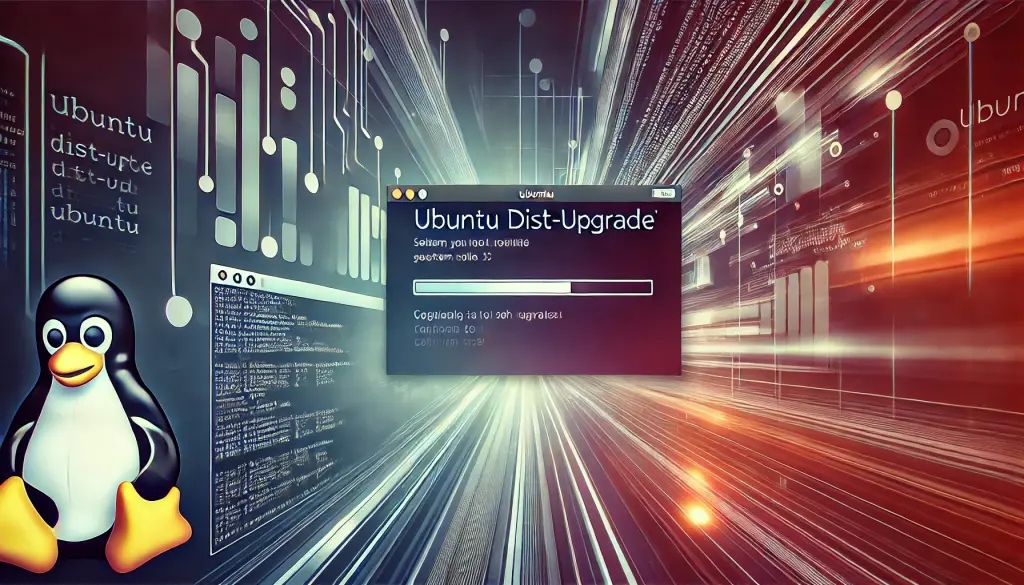
Ubuntu dist-upgrade is one of the essential commands used to keep an Ubuntu system up to date. Unlike a normal upgrade, dist-upgrade not only updates packages but also handles kernel updates and packages with complex dependencies. Specifically, it can automatically remove unnecessary packages and resolve dependency conflicts within the system.
Why Use “dist-upgrade”?
There are several ways to upgrade Ubuntu, but dist-upgrade is particularly powerful. While a regular upgrade mainly updates existing package versions, dist-upgrade installs newly required packages when additional dependencies are introduced. It also removes outdated dependency packages, helping maintain overall system stability.
For example, when a new kernel version is released, running dist-upgrade automatically updates the kernel, improving system security and performance.
2. Why Ubuntu Version Upgrades Are Important
There are multiple reasons to upgrade your Ubuntu system, including:
- Enhanced Security: New security patches and fixes for vulnerabilities protect the system from external threats.
- Bug Fixes: Existing issues and defects are resolved, improving system stability.
- New Features: Support for the latest software and hardware is added in newer versions.
- Performance Improvements: System performance may increase due to efficiency enhancements.
For these reasons, regular system upgrades are recommended for Ubuntu users.
3. What to Do Before Upgrading
Before upgrading Ubuntu, several important preparation steps are required. The most crucial one is creating a backup to protect your system and data.
Create a Backup
Since an upgrade may cause unexpected issues, it is strongly recommended to back up the following items in advance:
- Entire System: Creating a full system image backup allows you to restore the system easily if issues occur.
- User Data: Make sure to back up files and configuration data from your home directory.
Update the Package List
Before upgrading, ensure that all existing packages are updated. To do this, run the following commands:
sudo apt update
sudo apt upgrade
This step ensures that your package list is current and prevents issues during the upgrade process.
4. How to Perform the Version Upgrade
Upgrade Using the Command Line
You can upgrade Ubuntu from the CLI (Command Line Interface) with ease. Follow these steps to upgrade your system:
- Update the package list
sudo apt update - Upgrade the system
sudo apt dist-upgrade - Remove unnecessary packages
sudo apt autoremove
This sequence upgrades the entire system, updates the kernel and dependent packages, and removes packages no longer needed.
Upgrade via GUI
If you prefer not to use the command line, you can upgrade through the GUI. From Ubuntu’s “Software & Updates” settings, enable upgrade notifications for new versions.
5. Post-Upgrade Checklist
After the upgrade completes, check that your system is functioning correctly.
Verify the New Kernel
To confirm that the new kernel is installed, run:
uname -rIf the displayed kernel version matches the upgraded version, everything is working as expected.
Remove Unnecessary Packages
There may still be unnecessary packages remaining after the upgrade. Remove them using:
sudo apt autoremoveThis helps conserve storage space and prevents resource waste.
6. Common Issues and Solutions
Here are some common issues that may occur during or after an upgrade.
Package Conflicts
Package conflicts may arise during the upgrade process. In such cases, identify the conflicting packages and take appropriate action. You can search for solutions online based on the error message.
Configuration File Conflicts
Configuration files may also conflict during the upgrade. When the following type of message appears, proceed with caution:
Configuration file '/etc/cloud/cloud.cfg'Follow the displayed options carefully to resolve the situation correctly.
7. Conclusion
This article explained how to upgrade your system using the dist-upgrade command in Ubuntu. Regular upgrades help maintain security, performance, and access to the latest features. Always create a backup before upgrading to avoid data loss.
Keep your system updated to ensure a secure, stable, and optimized Ubuntu environment.