1. Why Use Nvidia Drivers on Ubuntu
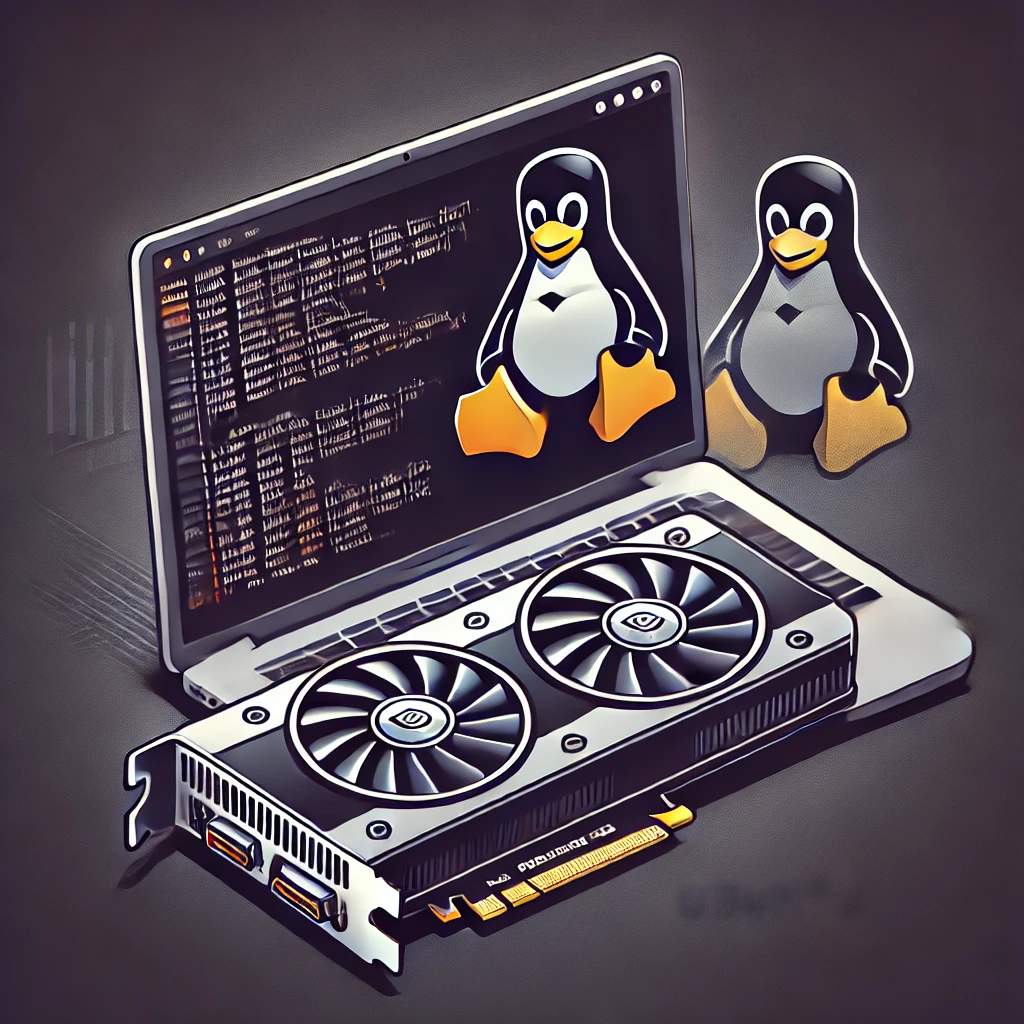
Ubuntu provides the open-source Nouveau driver by default, but installing the official Nvidia driver allows you to achieve much higher performance. Especially for GPU-intensive tasks such as gaming, 3D modeling, and AI development, the Nvidia driver offers superior stability and functionality. Additionally, if you need CUDA support, the official driver is essential. Installing Nvidia drivers on Ubuntu lets you fully utilize your hardware’s potential.
2. How to Check Your Nvidia Driver
Before installing the Nvidia driver, it’s important to check your Nvidia graphics card model and the recommended driver. This is the first step to selecting the correct driver version. Follow the steps below:
- Open the Terminal
- Launch the terminal using the shortcut
Ctrl + Alt + T.
- Enter the Command
- Run the following command:
bash ubuntu-drivers devices
- Check the Recommended Driver
- The output will list available and recommended drivers. Use this information to choose the best driver for your system.
3. How to Install the Nvidia Driver
There are two main ways to install the Nvidia driver. For beginners, the automatic installation method is recommended, though manual installation is also possible.
1. Automatic Installation
- Open the terminal and run the following command:
sudo ubuntu-drivers autoinstall- This command will automatically install the recommended driver for your system.
2. Manual Installation
- If you want to install a specific driver version manually, use the following command:
sudo apt install nvidia-driver-XXXReplace XXX with the version number of the driver you wish to install.
After installation, restart your system to apply the changes. Both methods are simple, but manual installation is useful if you need a specific version.

4. Installing Beta Drivers
In addition to stable drivers, Nvidia also provides beta drivers with the latest features. To install these, you need to add the PPA repository first. Follow the steps below:
- Add the PPA Repository
Run the following commands in the terminal:
   sudo add-apt-repository ppa:graphics-drivers/ppa
sudo apt update- Install the Driver
Then install the driver as usual with this command:
sudo apt install nvidia-driver-XXXBeta versions are ideal for users who want to test new features, but they may be less stable. Remember to reboot your system after installation.
5. Troubleshooting
After installing the Nvidia driver, you might encounter issues such as instability or malfunction. Below are common problems and their solutions.
1. If the Screen Goes Black
- The driver may not have loaded properly. Check the driver status with the following command:
bash sudo systemctl status nvidia
2. If the Driver Is Not Installed Correctly
- Remove all Nvidia-related packages and reinstall:
sudo apt purge nvidia-*
3. Disable the Nouveau Driver
- On Ubuntu, the open-source Nouveau driver may be enabled by default, causing conflicts with Nvidia drivers. Disable it using the following commands:
bash echo "blacklist nouveau" | sudo tee /etc/modprobe.d/blacklist-nouveau.conf sudo update-initramfs -u sudo reboot
These steps should resolve most issues. If installation still fails, double-check each step carefully.
6. Summary and Next Steps
Installing Nvidia drivers is crucial for Ubuntu users who want the best GPU performance. By mastering both automatic and manual installation methods, as well as beta driver setup and troubleshooting, you can optimize your Ubuntu environment for peak performance.
As a next step, consider configuring the Nvidia X Server Settings and setting up CUDA-based applications to fully leverage your GPU. Regular maintenance will help keep your system stable and efficient.