1. What Causes Ubuntu Installation Problems?
Ubuntu is one of the most widely used Linux distributions, known for being open-source, lightweight, and popular among both beginners and advanced users. However, it’s also true that many users encounter issues during the installation process, such as the installation not progressing or unexpected errors appearing mid-process. In this article, we will introduce the main reasons why the Ubuntu installation may not proceed and provide specific steps to resolve these issues.
2. Main Causes and Preparatory Measures
There are several possible reasons why the Ubuntu installation may fail. Here, we will introduce common causes and preparatory measures to ensure a smoother installation process.
Hardware Compatibility Issues
Ubuntu may not work correctly with certain hardware configurations or older devices. For example, dedicated graphics cards or specific network cards can trigger issues. Disabling such devices in the BIOS settings can sometimes resolve the problem. Additionally, UEFI mode settings may interfere with the installation process, so verify your UEFI configuration and consider switching to “Legacy” mode if necessary.
Corrupted ISO Files or Faulty USB Media
Corruption may occur when downloading the ISO file, preventing the installation from progressing. After downloading the ISO file, verify the file integrity using a checksum. USB write errors can also occur during media creation, so try writing the installer to another USB drive if problems persist.
3. Solutions for Each Error Message
If specific error messages appear during installation, resolving the issue often requires troubleshooting based on that message.
Installation Stops at the Boot Screen
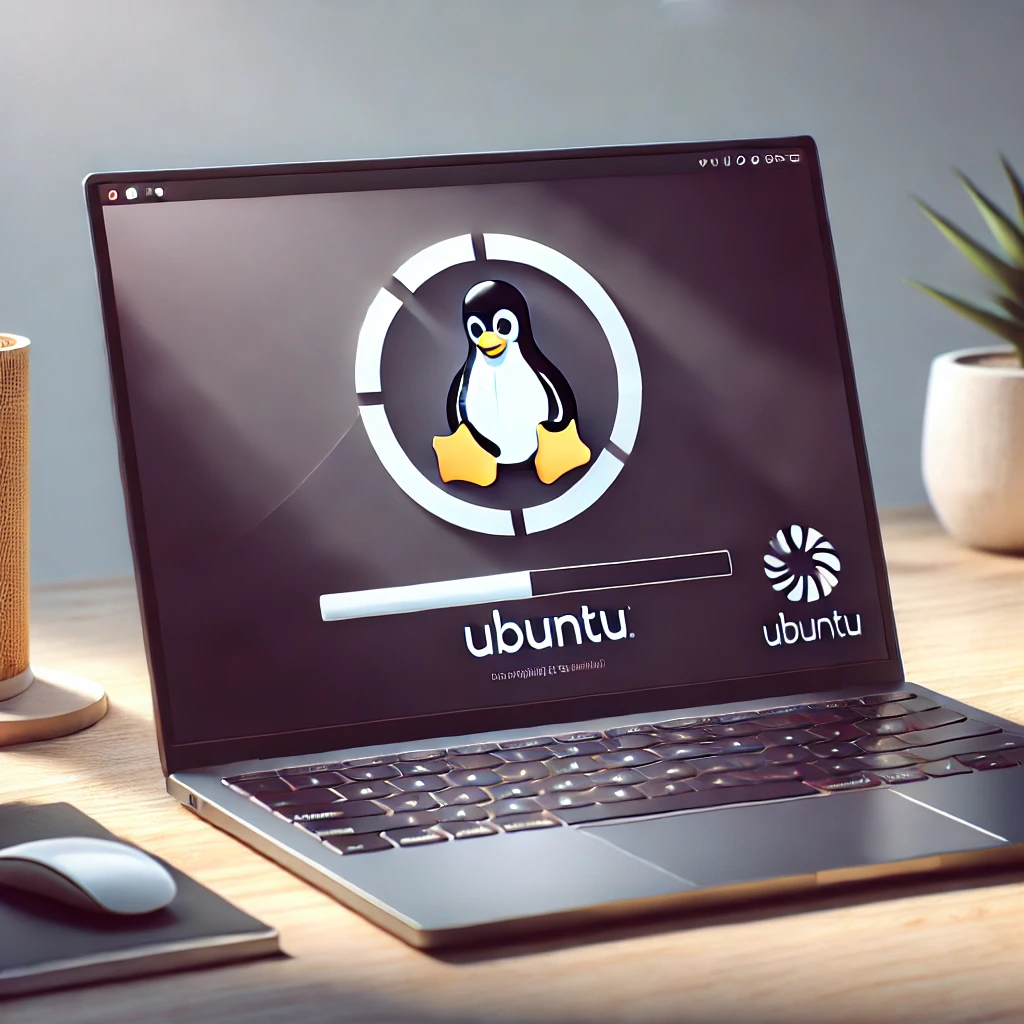
If the installation freezes at the Ubuntu logo screen, changing boot parameters such as “nomodeset” or “fsck.mode=skip” can help. These settings can be configured from the GRUB boot screen. After booting the PC and accessing GRUB, select the installation option, press the “e” key to enter edit mode, and add “nomodeset” to the boot parameters.
“Failed to start Ubuntu live CD installer” Error
If the error “Failed to start Ubuntu live CD installer” appears, the file system may be damaged. Boot into Ubuntu using a Live USB and try repairing the file system of the affected disk using the following command:
sudo mkfs.vfat -F 32 /dev/sda1It is recommended to use the fdisk -l command to confirm the correct device name (in this example, “/dev/sda1”).
Disk Partition Errors
If the installation process stops due to a partition error, you may need to reconfigure the disk partitions. Boot into Ubuntu using a Live USB and use partition tools such as “GParted” to repair or recreate the partition table before starting the installation again.
4. Additional Approaches When Installation Doesn’t Proceed
If the installation still fails to progress, try the following additional steps.
Try a Different USB Port or USB Device
USB port issues or errors in writing the installation media can also cause installation failures. Try switching to another USB port or using a different USB drive to create the installer.
Install Ubuntu from “Try Ubuntu” Mode
On some systems, launching Ubuntu in “Try Ubuntu” (Live mode) before starting the installation process can result in a successful installation. This method sometimes offers improved compatibility compared to direct installation from USB media.
5. Further Troubleshooting and Using Community Forums
If you still can’t resolve the issue, seeking help through technical support or community forums may be useful. Official Ubuntu support forums, Ask Ubuntu, and Japanese Ubuntu forums include many users with similar experiences who can provide valuable advice. Searching for keywords like “Ubuntu install stuck” can also lead you to potential solutions.
6. Checklist for a Successful Installation
Review the following checklist to increase your chances of a successful Ubuntu installation:
- Verify hardware compatibility and adjust BIOS settings accordingly.
- Ensure that the ISO file is not corrupted by verifying the checksum.
- If the boot screen freezes, adjust GRUB boot options.
- If disk errors occur, repair partitions from a Live USB environment.
- Try different USB ports or USB media.
- Consider installing Ubuntu via the “Try Ubuntu” mode.
Following these steps increases the likelihood of resolving installation issues and successfully installing Ubuntu without any problems.