What Is Lubuntu?
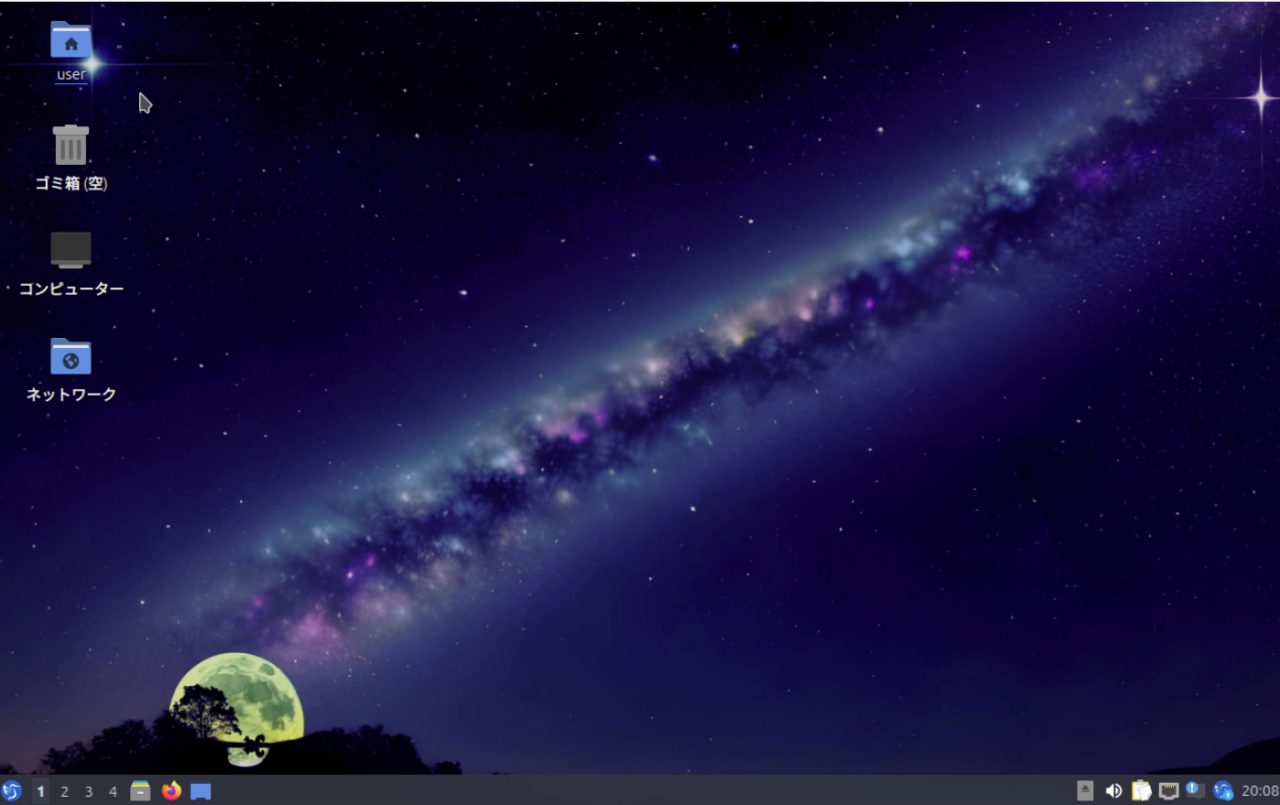
Lubuntu is one of the official Ubuntu flavors, known for being lightweight and consuming minimal system resources. It uses a lightweight desktop environment called LXQt, enabling smooth performance even on older hardware or systems with limited resources. This makes Lubuntu an ideal choice for users who do not require the latest high-spec PC to run modern software.
Why Choose Lubuntu?
- Lightweight and Fast: Lubuntu uses far less memory compared to other Linux distributions, allowing smooth operation even on older PCs.
- User-Friendly: With a simple interface and intuitive usability, Lubuntu is beginner-friendly for those new to Linux.
- Energy Efficient: Ideal for battery-powered devices like laptops, offering extended operating time.
Overview of Lubuntu 24.04
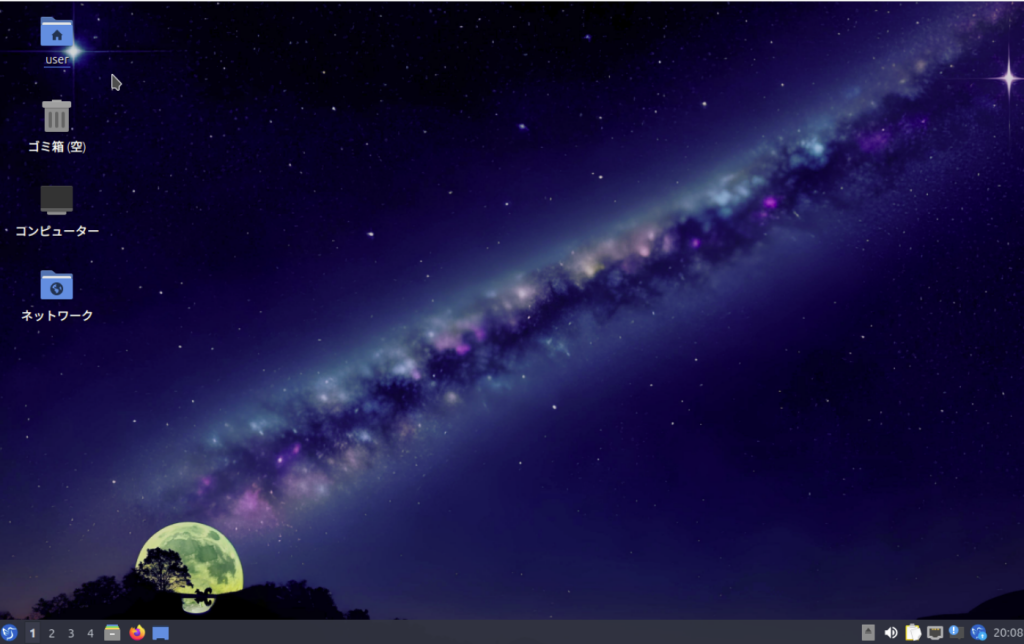
Released in April 2024, Lubuntu 24.04 is based on Ubuntu 24.04 and includes LXQt 1.4.0 and Qt 5.15.13. Major improvements from previous versions include the reintroduction of OEM installation mode and enhanced system performance and stability. Lubuntu 24.04 is particularly well-suited for users who want to revive older PCs or are looking for a lightweight OS.
Key Features
- LXQt 1.4.0: The latest LXQt version enhances the lightness and usability of the desktop environment.
- Qt 5.15.13: Built on the latest Qt framework for improved stability and responsiveness.
- OEM Installation Mode: Restored functionality ideal for deploying Lubuntu on multiple devices.
Related Links:
- Official Lubuntu Website: Access downloads, latest news, and official documentation.
- Lubuntu Release Notes: Detailed release information for Lubuntu 24.04.
How to Install Lubuntu
Lubuntu is designed so that even Linux beginners can install it easily. Below are the detailed steps and important considerations.
3.1. Creating a Bootable USB Drive
Download the Lubuntu ISO image from the official website and use tools like Rufus or Etcher to create a bootable USB drive. Once completed, you’re ready to perform a clean installation.
Related Links:
- Rufus Official Website: Create a bootable USB drive on Windows.
- Etcher Official Website: Recommended for creating bootable USBs on macOS or Linux.
Installing Lubuntu
- Select Language: Choosing Japanese can simplify the installation process.
- Set Location: Select Japan as the locale to automatically configure your timezone and keyboard settings.
- Keyboard Settings: Use the default settings or switch to a Japanese keyboard layout if needed.
- Choose Installation Mode: Select “Normal Installation” or choose “Minimal Installation” if you want fewer preinstalled applications.
- Partition Setup: For multi-boot environments, configure partitions manually. For new installations, choose “Erase disk and install”.
- Enter User Details: Set your username and password. Disabling auto-login is recommended for security.
- Start Installation: Review settings and begin installation. On most systems, the process completes within about 10 minutes.
First Boot and Initial Setup
After installation and reboot, perform the initial setup. Begin by updating the system to apply the latest security patches and bug fixes.
Post-Installation Setup
Post-installation configuration is essential to improve usability and performance in Lubuntu.
System Updates
Open the Update Manager and apply all available updates. Switching your software source to Japan’s servers can also improve update speed.
Setting Up Japanese Input
To enable Japanese input, use Mozc with Fcitx. Install “Fcitx5-Mozc” from the Muon Package Manager and reboot. Open Fcitx settings and configure Mozc as the input method to begin typing in Japanese.
Related Link:
- Fcitx Project: Learn how to configure Fcitx for Japanese input.
Basic Customization
Customize your desktop using LXQt Configuration Center. Modify themes, icons, and panel layout to create your ideal environment. You can also adjust power management settings for optimal efficiency on battery-powered devices.
Recommended Lightweight Software
Because Lubuntu is a lightweight distribution, choosing applications that consume fewer system resources is essential.
Essential Applications
- Web Browsers: Firefox and Chromium work well with Lubuntu. For even lighter performance, consider Midori.
- Text Editors: Mousepad and Leafpad are lightweight and ideal for coding or note-taking.
- Image Editors: GIMP provides advanced features while remaining lightweight. Pinta is suitable for simpler edits.
System Optimization Tools
- BleachBit: Cleans unnecessary files to save disk space and maintain system performance.
- System Profiler and Benchmark: Displays detailed system information and measures performance for optimization.
Related Links:
- BleachBit Official Website: Learn more about this system cleaning utility.
- GIMP Official Website: Download GIMP and access usage guides.
Advanced Settings and Customization
This section introduces advanced settings and customization tips to further enhance the Lubuntu experience.
LXQt Configuration Center
Through the LXQt Configuration Center, you can tweak detailed system settings. Manage startup applications to reduce resource usage, or modify themes, icons, and fonts to personalize your desktop environment.
Configuring Openbox Window Manager
Openbox allows fine-tuned customization of window behavior and appearance. Disabling effects such as transparency and shadows can improve performance. You can also modify themes and assign hotkeys to enhance workflow efficiency.
Openbox Configuration Examples:
- Change Themes: Choose simple themes like Clearlooks for a unified desktop appearance.
- Customize Hotkeys: Assign shortcuts to frequently used applications and window actions to boost productivity.
Troubleshooting and Tips
This section provides common issues and practical solutions for using Lubuntu effectively.
Common Installation Issues
- Partition Errors: If partition errors occur during installation, verify the existing partition table and manually create new ones. Back up data when using dual-boot environments.
- Network Issues: If Wi-Fi doesn’t function after installation, review Network Manager settings and ensure necessary drivers are installed.
Performance Tuning
- Memory Management: Disable unnecessary startup applications in LXQt session settings to reduce memory usage.
- Stop Unused Services: Disable unnecessary default services, such as printing applets, to improve responsiveness.
Summary
Lubuntu is a lightweight and user-friendly Linux distribution suitable for a wide range of users. It is ideal for reviving old hardware or running in low-resource environments, offering easy installation and extensive customization options. By following the steps and tips introduced in this article, you can make the most of Lubuntu.
This guide also covers Japanese-language settings and customization, allowing first-time Linux users to install and use Lubuntu smoothly. Experience its simple and responsive desktop and explore new possibilities on older PCs and power-efficient devices.
FAQ Section
Q1: What is the difference between Lubuntu and Ubuntu?
A: Lubuntu is an official Ubuntu flavor that uses the lightweight LXQt desktop environment. Ubuntu uses GNOME, making Lubuntu faster and more resource-efficient, especially on older hardware.
Q2: What are the system requirements for Lubuntu?
A: The minimum requirements are 1GB RAM, a 1GHz processor, and 8GB of disk space. For optimal use, 2GB or more of RAM and at least 20GB of storage are recommended.
Q3: How can I install additional software on Lubuntu?
A: Lubuntu includes tools like the Muon Package Manager and Discover. Use them to search for and install applications easily.
Q4: Japanese input is not working properly. What should I do?
A: Verify your Fcitx configuration and confirm that Mozc is installed. Restart Fcitx or the system if necessary.
Q5: How is Lubuntu kept secure?
A: As an Ubuntu-based distribution, Lubuntu receives Ubuntu’s security updates. Keeping the system updated ensures you always have the latest security patches.
Q6: Will installing Lubuntu erase existing data?
A: Choosing “Erase disk” will delete all data. For dual-boot setups, manually configure partitions to preserve data. Always back up before installation.
Additional Points
- Community and Support: Lubuntu has an active community offering help via forums and documentation.
- Lubuntu Official Forum: Users exchange information and support here.
- Lubuntu Wiki: Contains installation guides, FAQs, and detailed documentation.
- Regular Maintenance: Update regularly and use tools like BleachBit to remove unnecessary files and maintain top performance.